
You open your iPhone 18 Pro Max camera to capture a moment. Instead of the familiar Photo mode, the camera opens in Video. You switch back, frame your subject and take the picture. Something still looks different. The exposure is darker than you expected, or a photographic effect you used yesterday is still there.
You might think you accidentally changed something. Perhaps you touched the wrong control without noticing.
But there’s another possibility.
One setting in your iPhone’s Camera menu could be responsible for all of this: Preserve Settings.
It’s designed to make your camera remember your previous choices. The problem is that sometimes, what you wanted to use yesterday isn’t what you want today.
Here’s what the setting does, why it can cause problems and how to configure it so your camera behaves the way you expect.
What Does Preserve Settings Actually Do?
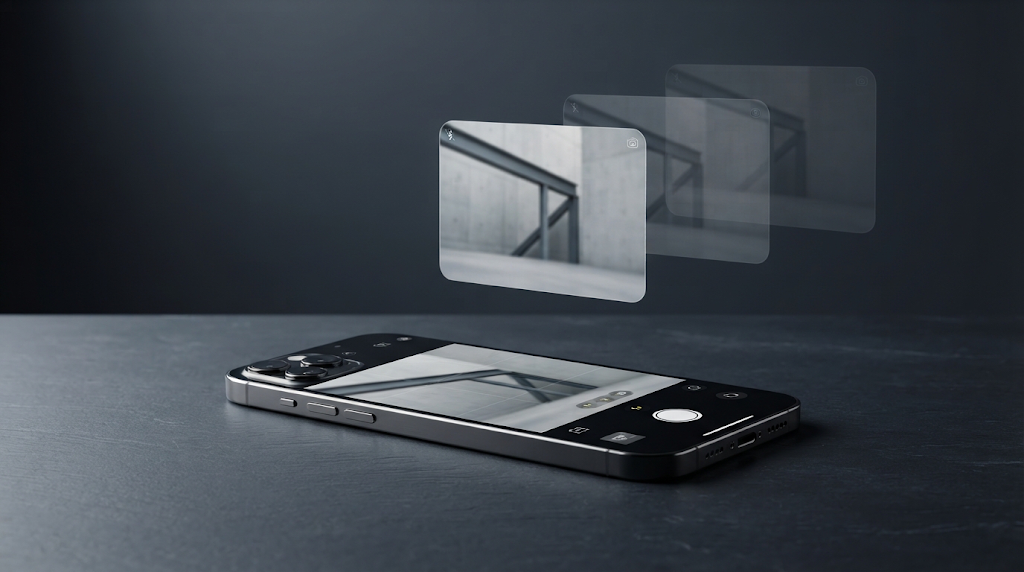
Preserve Settings is an option in your iPhone’s Camera settings that determines whether certain camera choices should be remembered when you close the Camera app and open it again.
Think of it as a memory feature.
Normally, some camera controls return to their default behaviour when you start a new camera session. Preserve Settings allows you to retain selected choices instead.
For example, if you switch from Photo to Video mode, use a particular photographic effect or adjust exposure, your iPhone can remember those choices rather than automatically returning to its usual starting configuration.
This is useful when you deliberately want consistency. But if you don’t pay attention to what the feature remembers, it can leave your camera in a state you weren’t expecting.
There are several individual controls within Preserve Settings. Four are particularly important to understand.
1. Camera Mode
This determines whether your iPhone remembers the last camera mode you used.
For example, suppose you record a video in the evening and close the Camera app. The next morning, you open it to photograph something.
If Camera Mode preservation is enabled, the Camera app can reopen in Video mode rather than returning to Photo mode.
This isn’t a malfunction. Your iPhone is simply following the instruction to remember your previous mode.
If you mostly take photographs and occasionally record videos, this can become inconvenient.
2. Creative Controls
Creative Controls remembers certain creative choices you made in the Camera app, such as supported filters, lighting effects and depth settings.
Imagine taking a photograph using a particular filter or Portrait Lighting effect. You close the app, then open it later to photograph something entirely different.
If the relevant settings are being preserved, your previous creative choices may still be active.
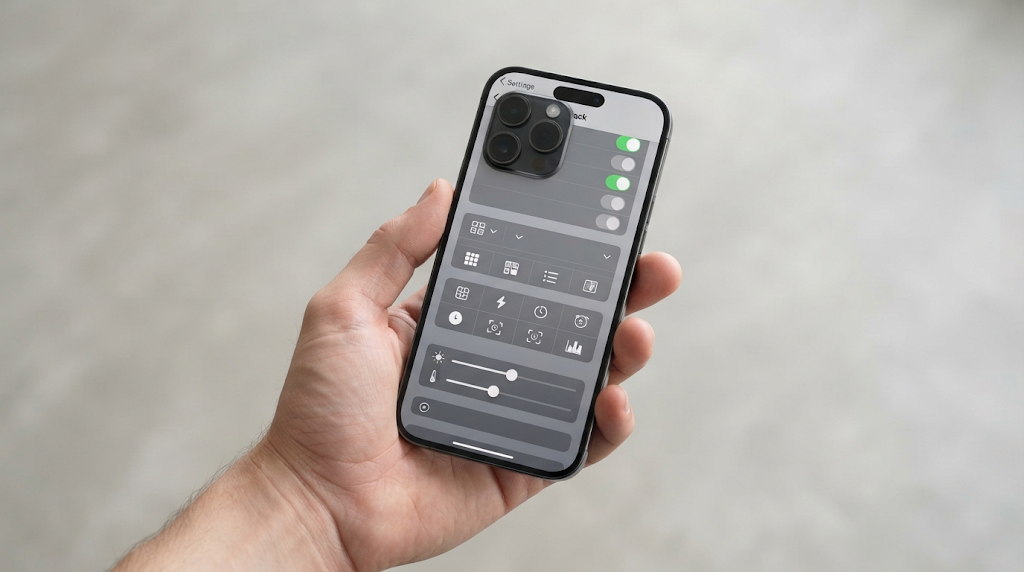
The result might be a photograph with a colour treatment, lighting effect or depth setting you didn’t intend to use.
This is particularly easy to overlook because you may concentrate on framing and focusing without checking the other camera controls.
3. Exposure Adjustment
Exposure determines how bright or dark your photograph appears.
Your iPhone normally adjusts exposure automatically, but you can manually change it when a scene requires more or less brightness.
For example, you might reduce exposure when photographing a bright sunset to retain more detail in the sky.
However, if Exposure Adjustment is enabled under Preserve Settings, your previous exposure adjustment can remain in place when you reopen the camera.
Now imagine photographing someone indoors after previously reducing exposure for a bright outdoor scene.
Your new photograph might appear darker than expected.
The camera hasn’t necessarily made a poor exposure decision. It may simply be retaining an adjustment you made earlier.
4. Live Photo
Live Photo captures a short period of movement and sound around the moment you take a photograph.
You might turn it off when taking a particular photograph because you only want a standard still image.
If Live Photo preservation is enabled, your iPhone remembers that choice rather than automatically returning to its usual Live Photo behaviour.
This can become inconvenient if you regularly switch between situations where you want Live Photos and situations where you don’t.
The important distinction is that Preserve Settings doesn’t randomly change these controls. It remembers the choices you’ve made.
That’s precisely why understanding it matters.
This setting is just one part of using your camera correctly. There are several other common iPhone camera mistakes to avoid if you want more consistent results.
Three Ways Preserve Settings Can Work Against You
Now that you understand what the feature does, let’s look at how it can affect your everyday photography.
1. Your Camera Opens in the Wrong Mode
This is probably the easiest problem to recognise.
You want to photograph something, but the Camera app opens in Video, Portrait or another mode you used previously.
You switch back to Photo, but that takes time. If you’re trying to capture a spontaneous moment, even a few seconds can matter.
The problem becomes particularly frustrating when you repeatedly forget that your camera remembers its previous mode.
The solution: If you prefer your camera to start in Photo mode, disable Camera Mode under Preserve Settings.
2. Yesterday’s Creative Choices Affect Today’s Photograph
This is more subtle.
You might have adjusted exposure for a bright outdoor scene, selected a particular photographic effect or changed a creative control for a specific portrait.
Later, you open the camera in completely different lighting conditions.
If those settings are being preserved, you may unknowingly carry yesterday’s adjustments into today’s photograph.
You might notice that the image looks darker, has a different colour appearance or doesn’t look the way you expected.
Naturally, you might assume the lighting is responsible or that you made a mistake while taking the photograph.
Sometimes, however, the explanation is much simpler: a previous camera adjustment is still active.
The solution: Disable the preservation of creative controls and exposure adjustments if you prefer these settings to return to their normal starting behaviour between camera sessions.
3. You Blame Yourself Instead of the Setting
This is perhaps the most frustrating consequence.
You take a photograph and don’t like the result. You adjust your position, change the lighting or try again.
You might even open the Photos app and start editing.
But you never check whether the camera is still using a setting from your previous session.
This creates unnecessary frustration because you’re trying to correct a problem without identifying its source.
The lesson is simple: before assuming that your photography needs improvement, check whether your camera is behaving as you expect.
The solution: Make checking your camera’s starting settings part of your photography routine, particularly when the result looks unexpectedly different.
Once you’ve addressed this particular setting, it’s worth looking at the other adjustments that can improve your results. Discover the first camera settings professionals adjust when they get a new iPhone.
But Is Preserving Camera Settings Always Bad?
No. And this is an important distinction.
Preserve Settings is not a defective feature. It was designed to make the Camera app more convenient for people who prefer consistency.
Consider a photographer who regularly uses Portrait mode. Having the camera remember that preference might save time.
Someone who consistently uses a particular Photographic Style might also prefer that style to remain available rather than selecting it every time.
Likewise, a photographer who deliberately adjusts exposure for a particular shooting workflow might appreciate having that adjustment remembered.
The problem isn’t preservation itself. It’s preserving settings without having a reason to do so.
My recommendation for everyday photography is to prioritise a predictable camera starting point.
If you mostly use your iPhone for ordinary photographs, family pictures, travel, food and spontaneous moments, you may prefer the camera to return to its normal starting behaviour rather than carry over several previous adjustments.
On the other hand, if you have a deliberate photography workflow, preserve the settings that genuinely save you time.
The best configuration isn’t necessarily turning everything off. It’s making sure your camera remembers only what you actually want it to remember.
Beyond the usual camera settings, your iPhone also has features that can change how you approach photography. Here’s a lesser-known iPhone camera capability that deserves more attention.
The 20-Second Fix: Configure Preserve Settings
Let’s put this into practice.
You don’t need to reset your iPhone, erase your photographs or change every camera setting.
You simply need to review the Preserve Settings menu.
Follow these steps:
Step 1: Open the Settings app on your iPhone.
Step 2: Scroll down and select Camera.
Step 3: Tap Preserve Settings.
Step 4: Review the available options and adjust them according to how you use your camera.
For a straightforward everyday photography setup, here’s where I’d start:
| Setting | Suggested choice | Why |
|---|---|---|
| Camera Mode | Off | Returns the camera to its default starting mode. |
| Creative Controls | Off | Avoids carrying over previous creative adjustments. |
| Exposure Adjustment | Off | Avoids retaining an exposure adjustment from an earlier session. |
| Live Photo | Off | Allows Live Photo to return to its normal default behaviour. |
The On/Off choices above are recommendations for someone who wants a predictable everyday starting point, not universal requirements.
You may see additional options on your iPhone 18 Pro Max, including Photographic Style, Macro Control, Depth Control and Lens Aperture. These also have individual preservation controls where supported.
You don’t need to disable them all. Consider which choices you deliberately want to carry between sessions.
That’s it. Your camera is now configured to start more predictably, without unnecessarily retaining the previous session’s choices.
Final Thoughts: One Setting, A Much More Predictable Camera
The iPhone 18 Pro Max has an impressive camera system, but getting the best from it isn’t just about knowing which lens to use or how to adjust aperture.
It’s also about understanding the settings that influence how your camera behaves.
Preserve Settings is a good example. It can save time when configured deliberately, but it can also create unnecessary confusion when your camera keeps remembering choices you no longer need.
Take a moment to review it.
You don’t need to change everything. Just make sure the settings being preserved are the ones you actually want.
One menu. A few deliberate choices. Every future photo starts with fewer surprises.
And that’s a good place to start taking better photographs.
Understanding individual settings is useful, but knowing how to bring everything together is what makes the difference. Explore how to improve your overall iPhone photography skills.
Want to understand your iPhone camera settings more confidently?
Knowing how Preserve Settings works is just one part of taking control of your camera. Understanding how exposure, focus, resolution, lenses and other settings interact can help you make better decisions before taking a photograph.
Mastering the iPhone 18 Pro Max Camera: A Practical Guide to Better Photos, Stunning Videos, and Confident Camera Control takes you through these features in a practical, step-by-step format.
You’ll learn how to configure your camera, take better-exposed photographs, photograph different subjects, record better videos, explore advanced controls and edit your images without overdoing it.
The guide also includes practical exercises, troubleshooting guidance and quick-reference tips.
Explore the book: Mastering the iPhone 18 Pro Max Camera